Installing Payload CMS on a VPS
Installing Payload CMS on a VPS
- Upload the project files. First, upload the botify.zip file to your VPS using FTP, SCP, or your preferred file transfer method.
scp main.zip root@your-server-ip:/var/www/
- Unzip the project once uploaded.
cd /var/www/
sudo unzip cosmus.zip -d cosmus
- Navigate to the project directory.
cd /var/www/cosmus
- Update the .env file with the correct credentials and configuration values.
NEXT_PUBLIC_SERVER_URL=http://localhost:3000
DATABASE_URL=postgresql://myuser:mypassword@localhost:5432/my_database
PAYLOAD_SECRET=e508b874afbf9bdb8d9778d7
SMTP_HOST=
SMTP_USER=
SMTP_PASS=
PAYLOAD_ENABLE_JOB_QUEUE=true
WHATSAPP_API_KEY=
PAYLOAD_DEV=false
NODE_ENV=production
ORGANIZATION_NAME=Cosmos Beauty Clinic
- Run the following command to install all project dependencies.
pnpm i
- Execute the initial database migrations.
pnpm migrate
- Start the application. Keep your Node.js application running continuously in the background with PM2.
pm2 start pnpm -- start
Note: Click Here PM2 Installation
Payload CMS Installation with Docker
- Upload the project files to your VPS using FTP, SCP, or your preferred transfer method.
scp cosmus.zip root@your-server-ip:/var/www/
- Unzip the project once uploaded.
cd /var/www/
sudo unzip cosmus.zip -d cosmus
- Navigate to the project directory.
cd /var/www/cosmus
- Open the Dockerfile in the root directory and update it with the correct port and configuration settings.
FROM node:20-alpine AS builder
RUN npm install -g pnpm
WORKDIR /app
COPY package.json pnpm-lock.yaml ./
RUN pnpm install --frozen-lockfile
ENV DATABASE_URL=postgres://postgres:postgres@db:5432/cosmos
ENV NEXT_PUBLIC_SERVER_URL=https://beauty.codenik.in
ENV PAYLOAD_SECRET=secret
ENV NODE_ENV=production
ENV PAYLOAD_DISABLE_DB_PUSH=true
COPY . .
RUN pnpm build
FROM node:20-alpine AS prod
WORKDIR /app
COPY --from=builder /app/.next/standalone ./
COPY --from=builder /app/public ./public
COPY --from=builder /app/.next/static ./.next/static
EXPOSE 3000
ENV PORT=3000
ENV NODE_ENV=production
ENV PAYLOAD_DISABLE_DB_PUSH=true
CMD ["node", "server.js"]
- Open
docker-compose.ymlin the root directory and update it with the correct port and configuration settings.
services:
   cosmos_payload:
      build: .
      container_name: cosmos_payload
      volumes:
         - ./public/uploads:/app/public/uploads
      ports:
         - "3000:3000"
      depends_on:
         - db
      restart: unless-stopped
      environment:
         NODE_ENV: production
         PAYLOAD_SECRET: secret
         PAYLOAD_DISABLE_DB_PUSH: "true"
         DATABASE_URL: postgres://postgres:postgres@db:5432/cosmos
         PAYLOAD_PUBLIC_SERVER_URL: https://beauty.codenik.in
      networks:
         - default-net

   db:
      image: postgres:15
      container_name: cosmos_db
      environment:
         POSTGRES_USER: postgres
         POSTGRES_PASSWORD: postgres
         POSTGRES_DB: cosmos
      ports:
         - "5432:5432"
      volumes:
         - postgres-data:/var/lib/postgresql/data
      networks:
         - default-net

volumes:
   postgres-data:

networks:
   default-net:
      driver: bridge
- Verify containers are running.
sudo docker ps
- You should see containers for:
- cosmus_payload (Next.js app)
- postgres
- Start the application using Docker.
sudo docker compose up -d --build
- Access the application.
http://yourdomain.com
- You will be automatically redirected to the onboarding page.
Your Payload CMS cosmus template is now successfully installed and running in a secure, Dockerized environment.
Create admin account.
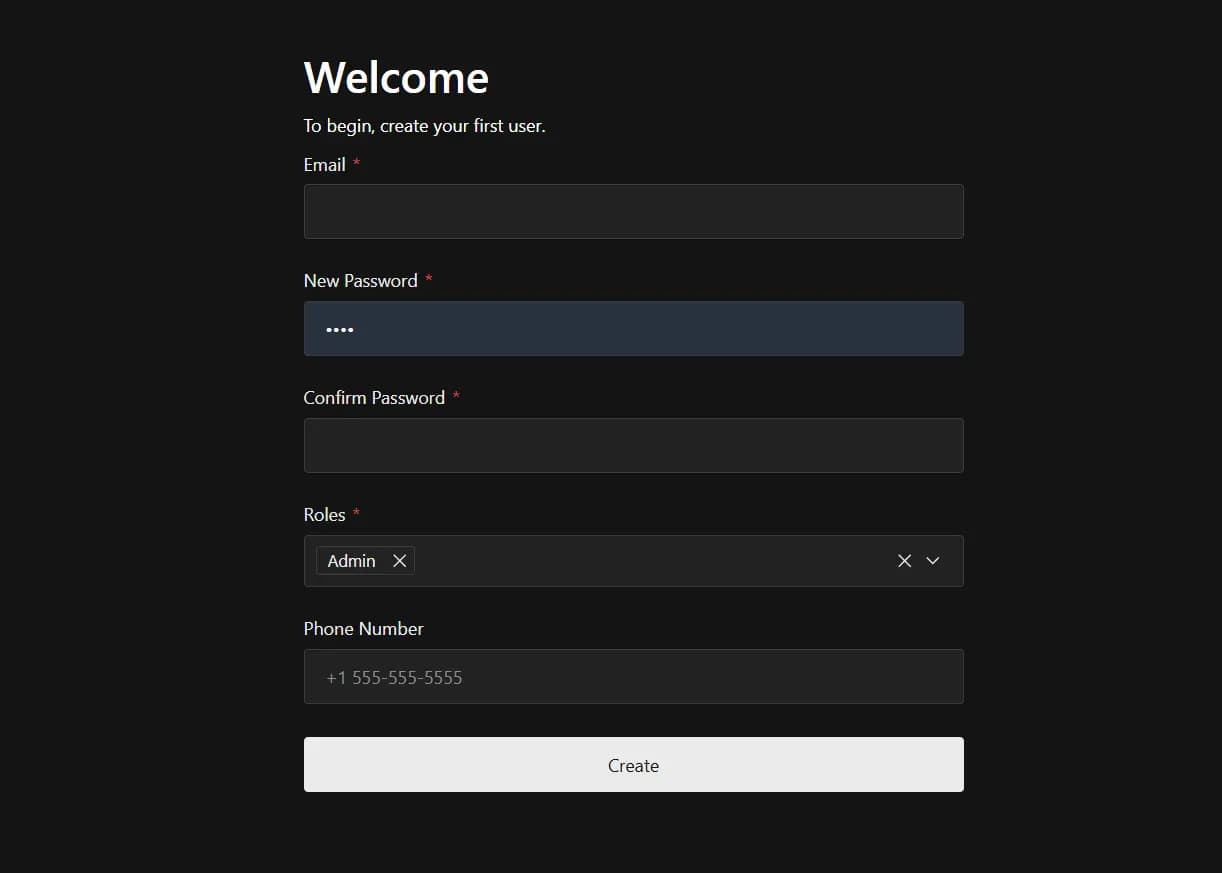
Note: The first user typically has full administrative privileges and can create additional users and manage roles.