Payload CMS installation
Installing Payload CMS Locally and Restoring PostgreSQL Dump
Unzip your Payload CMS project to a desired location, e.g.
C:\Users\milan\Desktop\cosmus
Install Dependencies. Open Command Prompt in the project folder and run:
pnpm i
Create PostgreSQL Database. Go to your PostgreSQL bin folder::
cd "C:\Program Files\PostgreSQL\18\bin"
Connect to PostgreSQL.
psql -h 127.0.0.1 -U postgres
Enter your password (postgres in this example) when prompted.
Create the Database.
CREATE DATABASE test1;
Configure Payload CMS Set your PostgreSQL connection URL: inn .env
DATABASE_URL=postgres://postgres:postgres@127.0.0.1:5432/test1
PAYLOAD_SECRET=your_secret_key
PORT=3000
Generate Database Migration Before running the project locally, generate the migration files:
npx payload migrate:create
Run the Migration Apply the migrations to the database:
npx payload migrate
Start Payload CMS Locally
Open Command Prompt in your project folder.
Run:
pnpm dev
Open a browser and go to:
http://localhost:3000/admin
You should see the Payload CMS admin interface with your restored data.
Installing Payload CMS on a VPS
Upload the project files. First, upload the botify.zip file to your VPS using FTP, SCP, or your preferred file transfer method.
scp main.zip root@your-server-ip:/var/www/
Unzip the project once uploaded.
cd /var/www/
sudo unzip cosmus.zip -d cosmus
Navigate to the project directory.
cd /var/www/cosmus
Update the .env file with the correct credentials and configuration values.
NEXT_PUBLIC_SERVER_URL=http://localhost:3000
DATABASE_URL=postgresql://myuser:mypassword@localhost:5432/my_database
PAYLOAD_SECRET=e508b874afbf9bdb8d9778d7
SMTP_HOST=
SMTP_USER=
SMTP_PASS=
PAYLOAD_ENABLE_JOB_QUEUE=true
WHATSAPP_API_KEY=
PAYLOAD_DEV=false
NODE_ENV=production
ORGANIZATION_NAME=Cosmos Beauty Clinic
Run the following command to install all project dependencies.
pnpm i
Execute the initial database migrations.
pnpm migrate
Start the application.
pnpm start
Keep your Node.js application running continuously in the background with PM2.
pm2 start pnpm -- start
Note: Click Here PM2 Installation
Payload CMS Installation with Docker
Note: Botify Docker installation requires an extended license. Please contact us for more details.
Upload the project files to your VPS using FTP, SCP, or your preferred transfer method.
scp cosmus.zip root@your-server-ip:/var/www/
Unzip the project once uploaded.
cd /var/www/
sudo unzip cosmus.zip -d cosmus
Navigate to the project directory.
cd /var/www/cosmus
Open the Dockerfile in the root directory and update it with the correct port and configuration settings.
FROM node:20-alpine AS builder
RUN npm install -g pnpm
WORKDIR /app
COPY package.json pnpm-lock.yaml ./
RUN pnpm install --frozen-lockfile
ENV DATABASE_URL=postgres://postgres:postgres@db:5432/cosmos
ENV NEXT_PUBLIC_SERVER_URL=https://beauty.codenik.in
ENV PAYLOAD_SECRET=secret
ENV NODE_ENV=production
ENV PAYLOAD_DISABLE_DB_PUSH=true
COPY . .
RUN pnpm build
FROM node:20-alpine AS prod
WORKDIR /app
COPY --from=builder /app/.next/standalone ./
COPY --from=builder /app/public ./public
COPY --from=builder /app/.next/static ./.next/static
EXPOSE 3000
ENV PORT=3000
ENV NODE_ENV=production
ENV PAYLOAD_DISABLE_DB_PUSH=true
CMD ["node", "server.js"]
Open docker-compose.yml in the root directory and update it with the correct port and configuration settings.
services:
   cosmos_payload:
      build: .
      container_name: cosmos_payload
      volumes:
         - ./public/uploads:/app/public/uploads
      ports:
         - "3000:3000"
      depends_on:
         - db
      restart: unless-stopped
      environment:
         NODE_ENV: production
         PAYLOAD_SECRET: secret
         PAYLOAD_DISABLE_DB_PUSH: "true"
         DATABASE_URL: postgres://postgres:postgres@db:5432/cosmos
         PAYLOAD_PUBLIC_SERVER_URL: https://beauty.codenik.in
      networks:
         - default-net

   db:
      image: postgres:15
      container_name: cosmos_db
      environment:
         POSTGRES_USER: postgres
         POSTGRES_PASSWORD: postgres
         POSTGRES_DB: cosmos
      ports:
         - "5432:5432"
      volumes:
         - postgres-data:/var/lib/postgresql/data
      networks:
         - default-net

volumes:
   postgres-data:

networks:
   default-net:
      driver: bridge
Verify containers are running.
sudo docker ps
You should see containers for:
- botify-web (Next.js app)
- postgres
Start the application using Docker.
sudo docker compose up -d --build
Access the application.
http://yourdomain.com
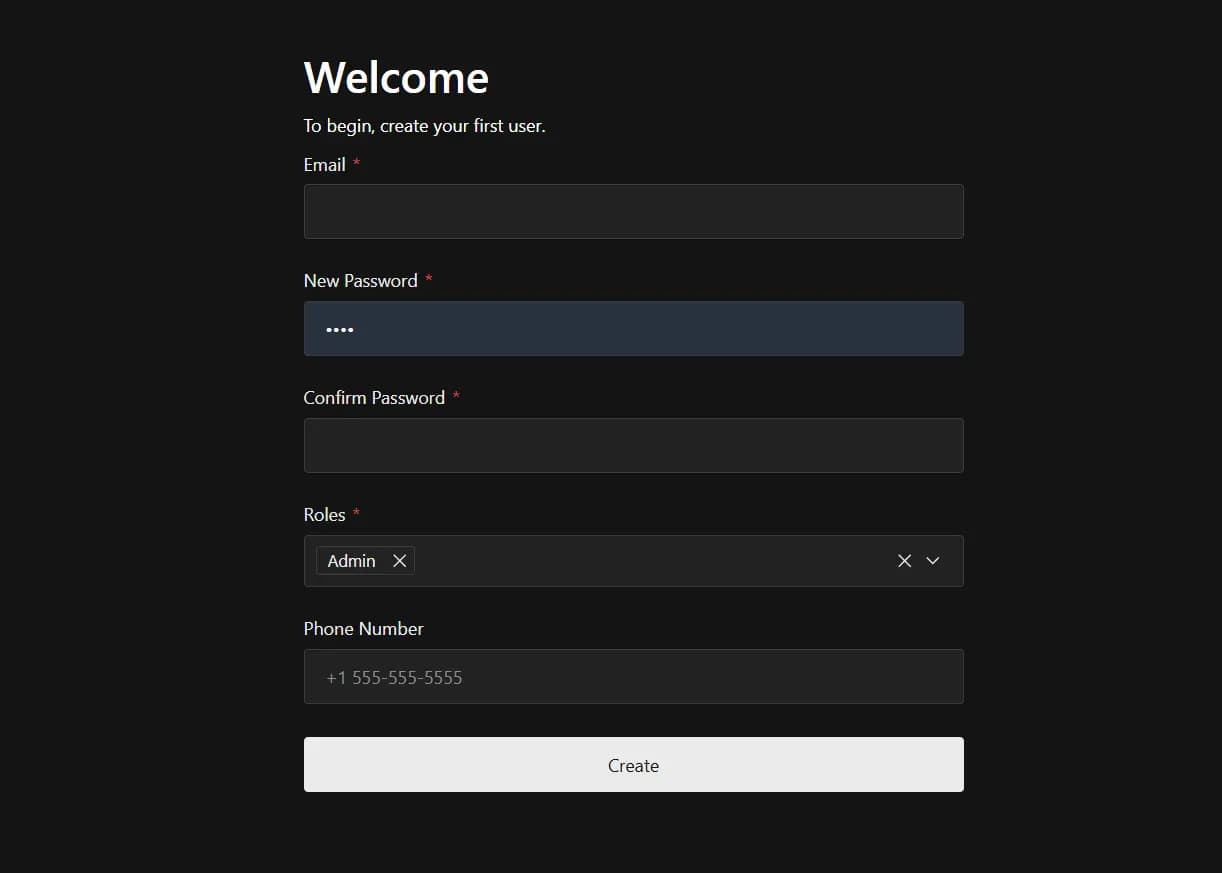
You will be automatically redirected to the onboarding page.
Your Payload CMS cosmus template is now successfully installed and running in a secure, Dockerized environment.
Create admin account.